Skip to content
Edit Any Text

JPG · PNG · WEBP · Screenshots

Edit text in an image, keep everything else

Fix a date on an invitation, a typo on a poster or a price on a flyer. Only the words you change are redrawn — in a matching font — and the rest of the picture stays exactly the same.

Drop a PDF or image here

or paste a screenshot with Ctrl+V

Choose file

PDF, JPG, PNG, WEBP · up to 100 MB

How to edit text in an image

  1. 01

    Upload or paste the image

    Drop a JPG, PNG or WEBP, or paste a screenshot with Ctrl+V. The image stays on your device.

  2. 02

    Click the text and type

    Text is found automatically. Click a line, type the new words, and watch the preview update.

  3. 03

    Download the image

    Save it in the original format and size, with only your change applied.

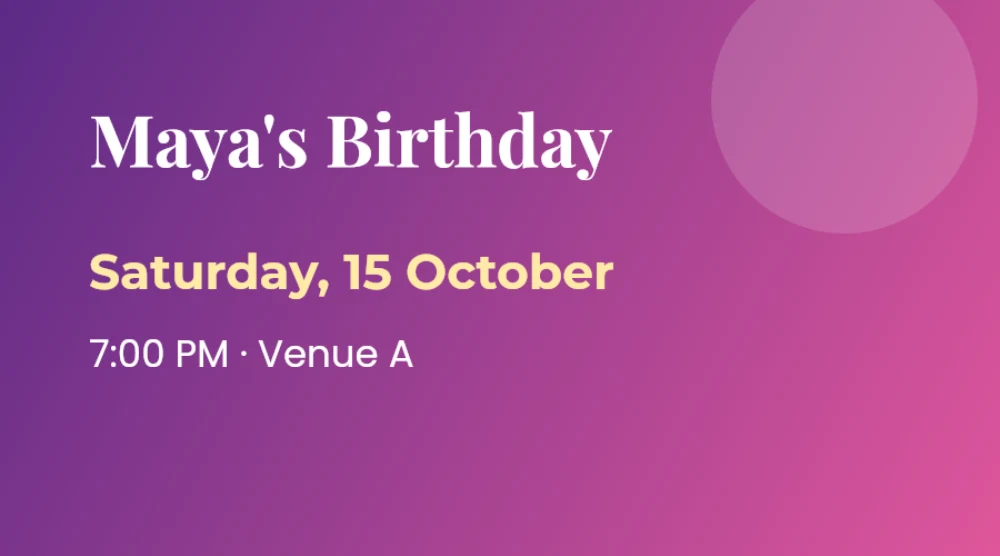
Original

Original: Edit text in an image, keep everything else

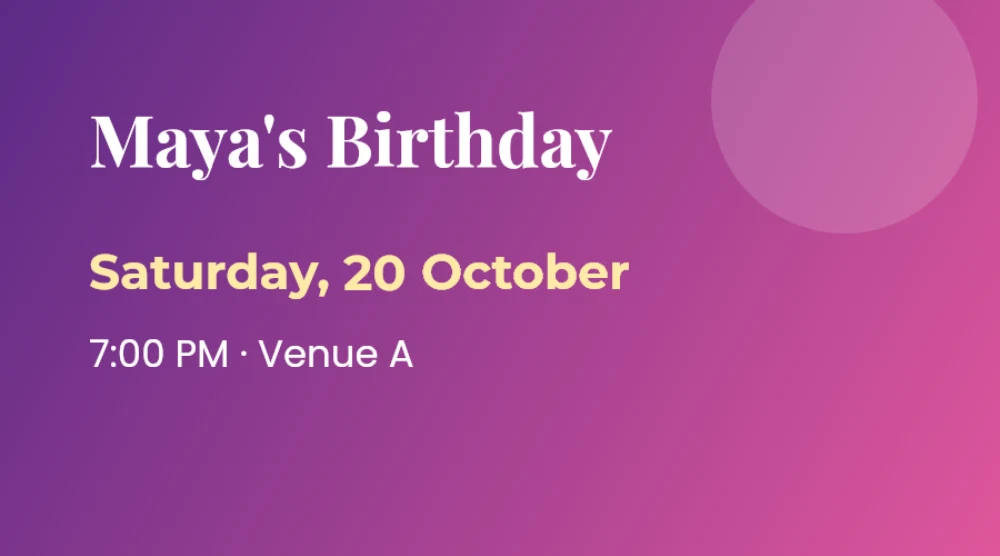
Edited

Edited: “15” became “20” in the same font and colour; “October” slid over to keep the spacing.
“15” became “20” in the same font and colour; “October” slid over to keep the spacing.

Change the words, not the picture

Only changed words are redrawn

Change “15 October” to “20 October” and only “15” is replaced. Unchanged words keep their original pixels.

Matching font, size and colour

The editor compares the original letters against a library of fonts and picks the closest one, at the same size and colour.

Clean background repair

The old letters are removed and the area behind them is rebuilt from the surroundings, including gradients and grain.

Light or dark text

Recognition runs on normal and inverted versions of the image, so white text on dark backgrounds is found too.

Select any area

Stylised or tiny text not detected? Draw a box around it and the editor reads just that area.

Nothing is uploaded

All recognition and editing happens in your browser. Your photos are never sent anywhere.

Why not ask an AI image generator?

Edit Any TextRegenerating with AI / basic editors
Only the changed words are redrawnYes — every other pixel stays identicalAI tools often regenerate the whole image
Matches font, size and colourAutomatic, adjustable by handManual, or a generic font
Background behind the textRebuilt from surrounding pixelsOften a visible box or blur
Image uploaded to a serverNeverUsually yes

Change text in a picture without starting over

Images are flat: once a poster, invitation or social graphic is exported as JPG or PNG, its text is just coloured pixels. To fix a single date you would normally need the original design file, or the skills to rebuild the letters by hand in Photoshop. Asking an AI image generator to make the change is quicker, but it tends to redraw the whole picture — fonts shift, decorations move, faces change.

Edit Any Text treats your image as finished artwork. It finds the text, lets you change the words you want, and repaints only those letters. The rest of the picture is not re-generated, re-compressed into something else, or smoothed over. It is the same image with different words.

How the image text editor works

First, built-in text recognition (OCR) locates every line and word, including light text on dark backgrounds. When you edit a line, the editor compares your new text with the old one word by word, so only the words that actually changed are touched.

For those words, it measures which pixels belong to the letters and which belong to the background. The letter pixels are removed and the background is rebuilt from the surrounding area — following gradients and even film grain — so there is no box or smudge. The new words are then drawn using the font that best matches the original letters, fitted to the same height, width, baseline and colour. If the new text is longer or shorter, the words after it slide along the line so spacing stays natural.

You stay in control: change the font, make it bold or italic, adjust the size or colour, or nudge the position pixel by pixel. Hold the eye button to compare with the original at any time.

Tips for the best result

  • Use the highest-resolution version of the image you have — more pixels give more accurate font matching.
  • If a word isn’t detected, use Select area and draw a box tightly around it.
  • For decorative or handwritten fonts, try the script fonts in the font menu and adjust the size.
  • Choose Whole line when a line is centred and its length changes a lot, then pick the alignment.
  • PNG keeps every pixel lossless. JPG images are saved at high quality in the same format.

Private and free to use

Your image never leaves your device: recognition and editing run entirely in your browser, which also makes the tool quick. There is no sign-up, watermark or usage limit. Please only edit images you own or have permission to modify, and never use the tool to alter official documents or create misleading content.

Questions about editing text in images

How can I edit text in an image without changing the font?

Open the image, click the text and type your change. Edit Any Text detects the original font style, size and colour and redraws only the changed words with the closest match, so the result blends in with the rest of the text.

Can I change text in a picture for free?

Yes. Editing and downloading are completely free, with no watermark, account or daily limit.

How do I replace text in a JPG or PNG without Photoshop?

Upload the JPG or PNG here, click the text you want to replace and type the new words. The old letters are erased, the background is rebuilt, and the new words are drawn in a matching style. Download the result in the same format.

Can I edit text in a screenshot?

Yes. Paste the screenshot with Ctrl+V (or Cmd+V on Mac) or upload it. Screenshots usually give excellent results because their text is sharp and their backgrounds are clean.

Why wasn’t my text detected?

Very stylised, tiny, curved or low-contrast text can be hard to recognise. Click “Select area”, drag a box around the text and the editor will read just that region. You can also change the recognition language in the toolbar.

Will the rest of my image lose quality?

No. Pixels outside the edited words are copied unchanged. PNG and WEBP output is lossless; JPG output is re-saved at high quality, as every JPG editor must.

Is my image uploaded to a server?

No. Text recognition, background repair and drawing all happen inside your browser. Your image is never sent to us.

Can I edit text in an image on my phone?

Yes. The editor works on iPhone and Android browsers. Use zoom for small text and the bottom panel to type your change.

Which languages can it recognise?

English, Spanish, Portuguese, French, German, Italian, Dutch, Hindi, Indonesian, Turkish, Polish and Russian. Choose the language in the editor toolbar.

More tools